
Overview
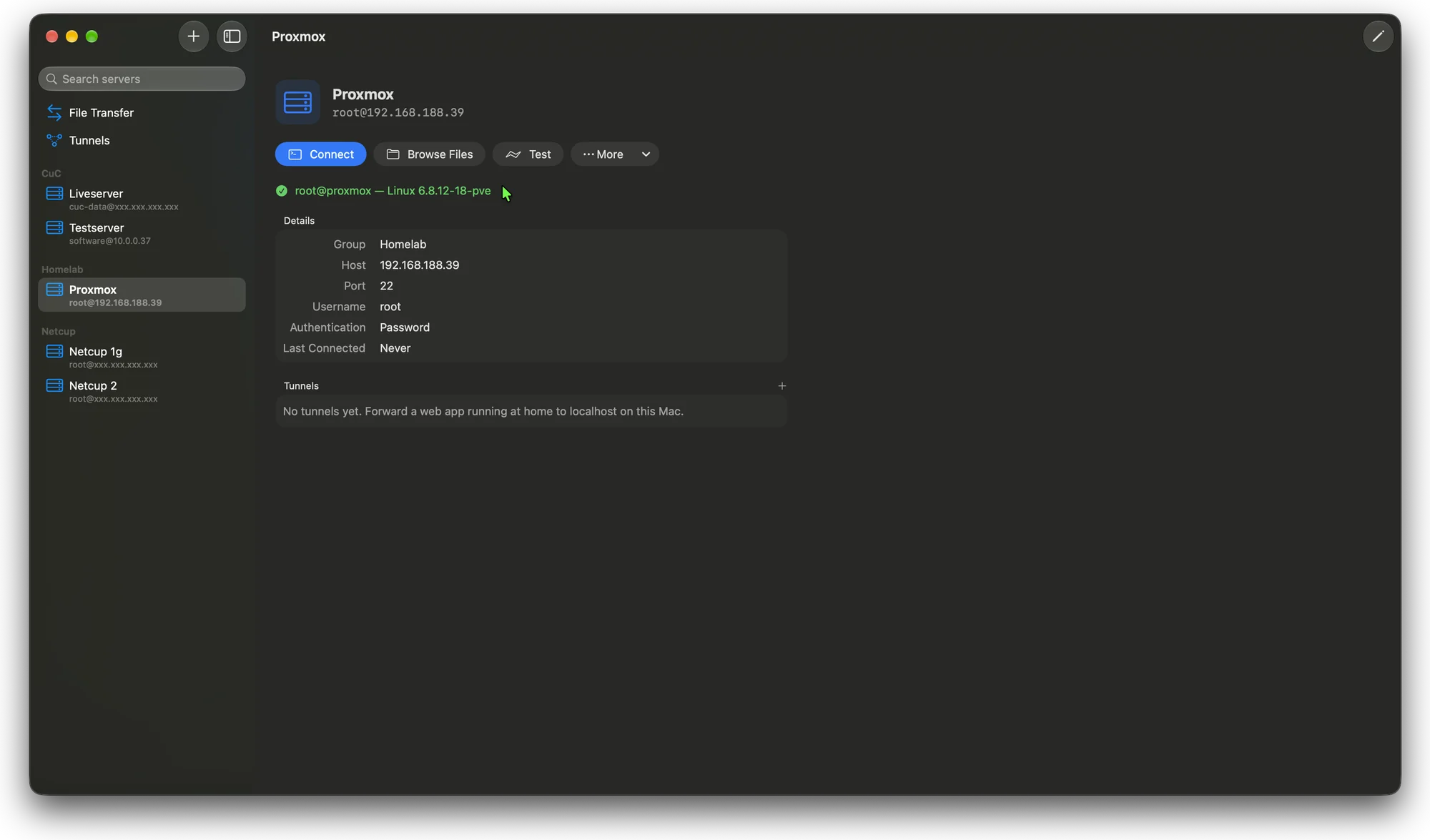
The window is split into a sidebar and a content area. The sidebar contains, from top to bottom:
- a search field that filters the server list,
- File Transfer and Tunnels, the two tool views,
- Sessions, listing open terminal sessions (only shown while one is open),
- the saved servers, grouped by the group name set on each server.
Selecting a server opens its detail view with its connection details, its tunnels, and actions to Connect, Browse Files and Test the connection. Test logs in once and shows the remote user, host name and kernel.
Adding and editing servers
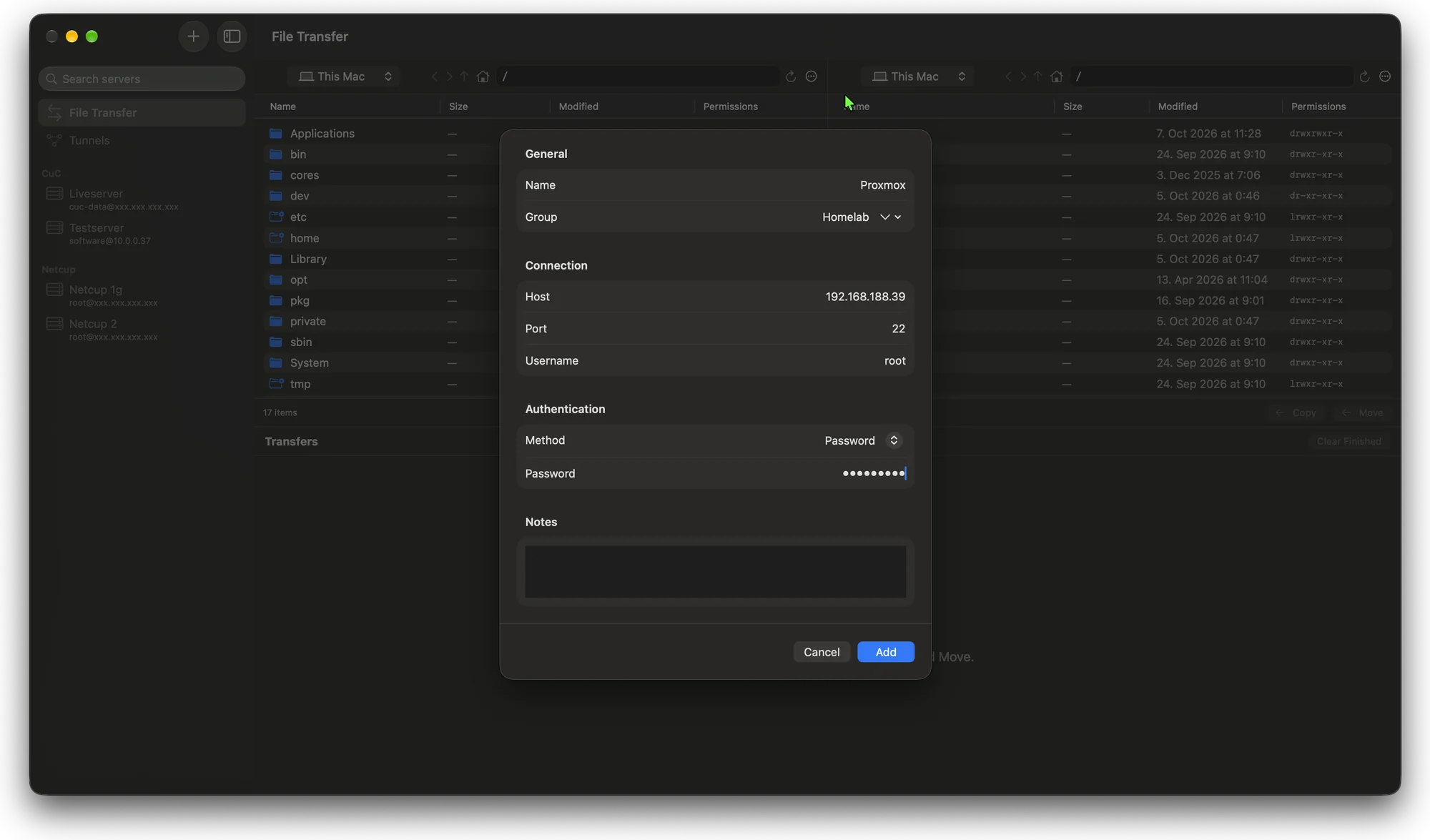
The + button in the sidebar opens the server editor. The same sheet is used for editing an existing server.
| General | Name and group. Servers with the same group are listed together in the sidebar. |
|---|---|
| Connection | Host, port and username. |
| Authentication | Password, SSH key or SSH agent. Passwords are stored in the macOS Keychain. |
| Notes | Free text for anything worth remembering about the server. |
Terminal
Connect opens an SSH session in the built-in terminal. Each open session appears under Sessions in the sidebar, so several sessions can be open at once and switched between. The buttons at the top right reconnect or close the session.
In Settings the terminal can be changed: sessions open either in the built-in terminal, in Terminal.app or in iTerm2.
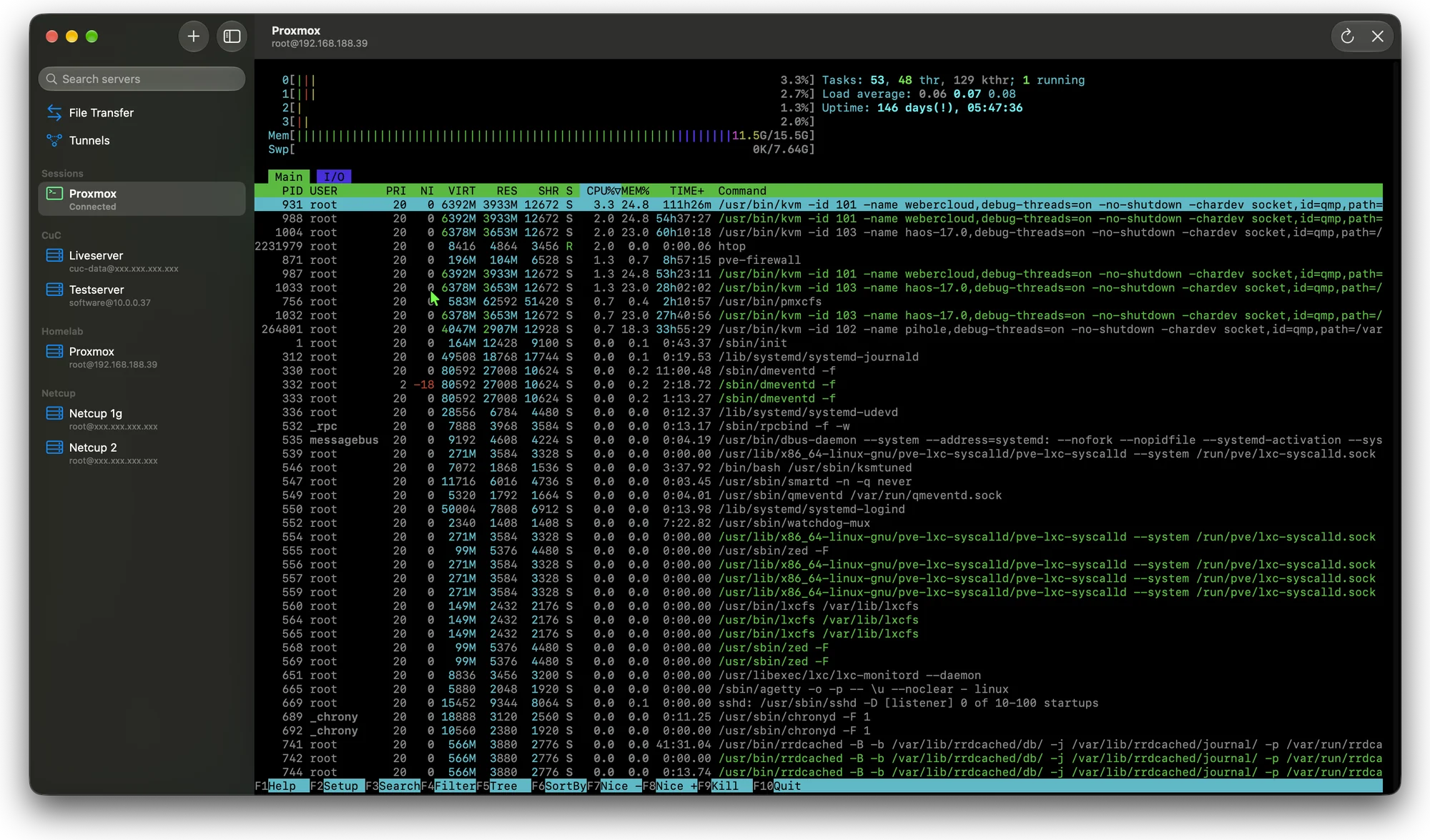
htop on a Proxmox host.Tunnels
Tunnels are created per server, from the server's detail view or with + in the Tunnels view. Two kinds are supported:
- Local port forwards, e.g.
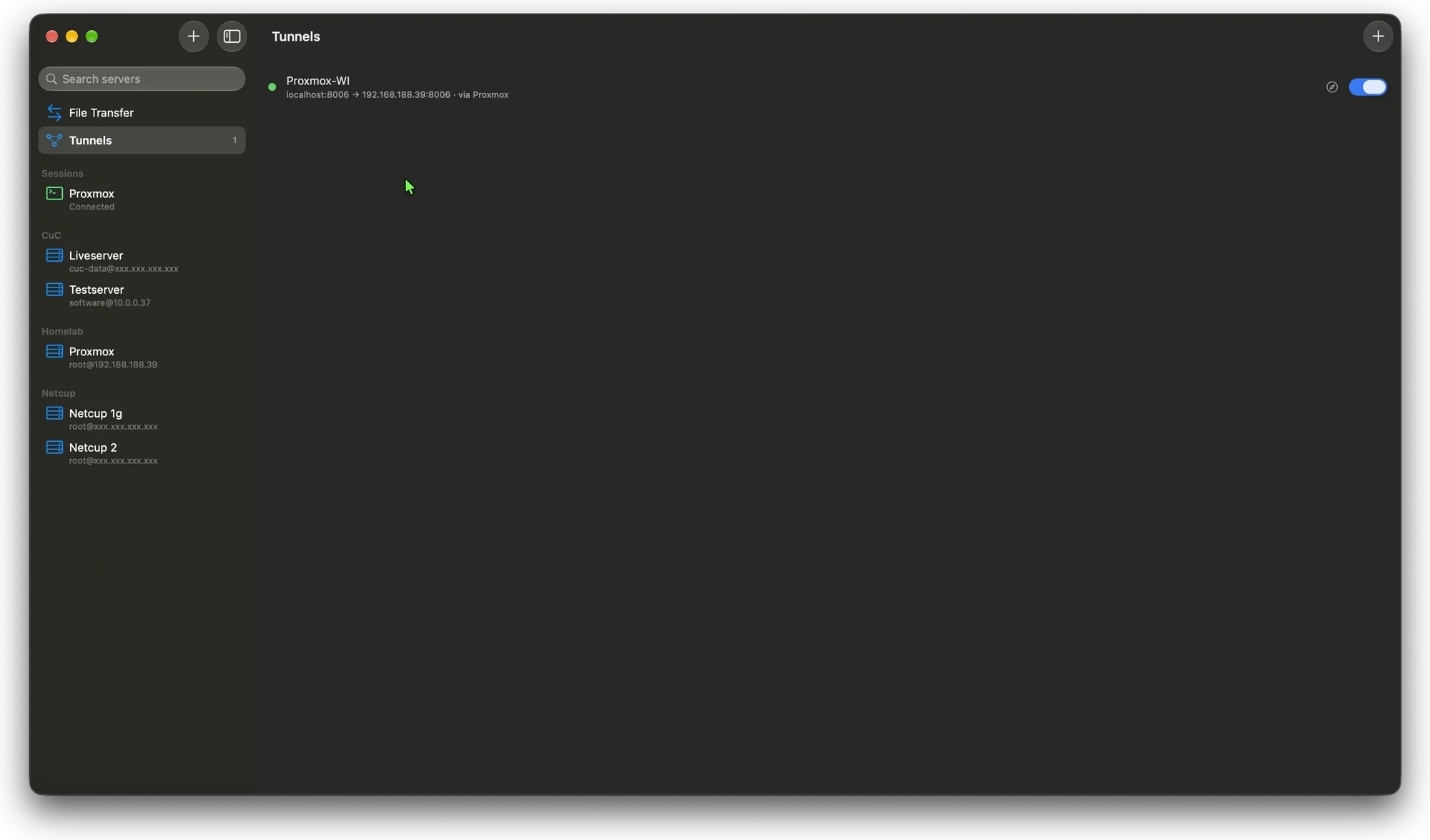
localhost:8006 → 192.168.188.39:8006, to reach a service behind the server on the Mac. - SOCKS proxies, to route traffic through the server.
The Tunnels view lists all tunnels. Each row shows the mapping and the server it runs through, a status dot, a button to open the forwarded address in the browser, and a switch to start or stop it.
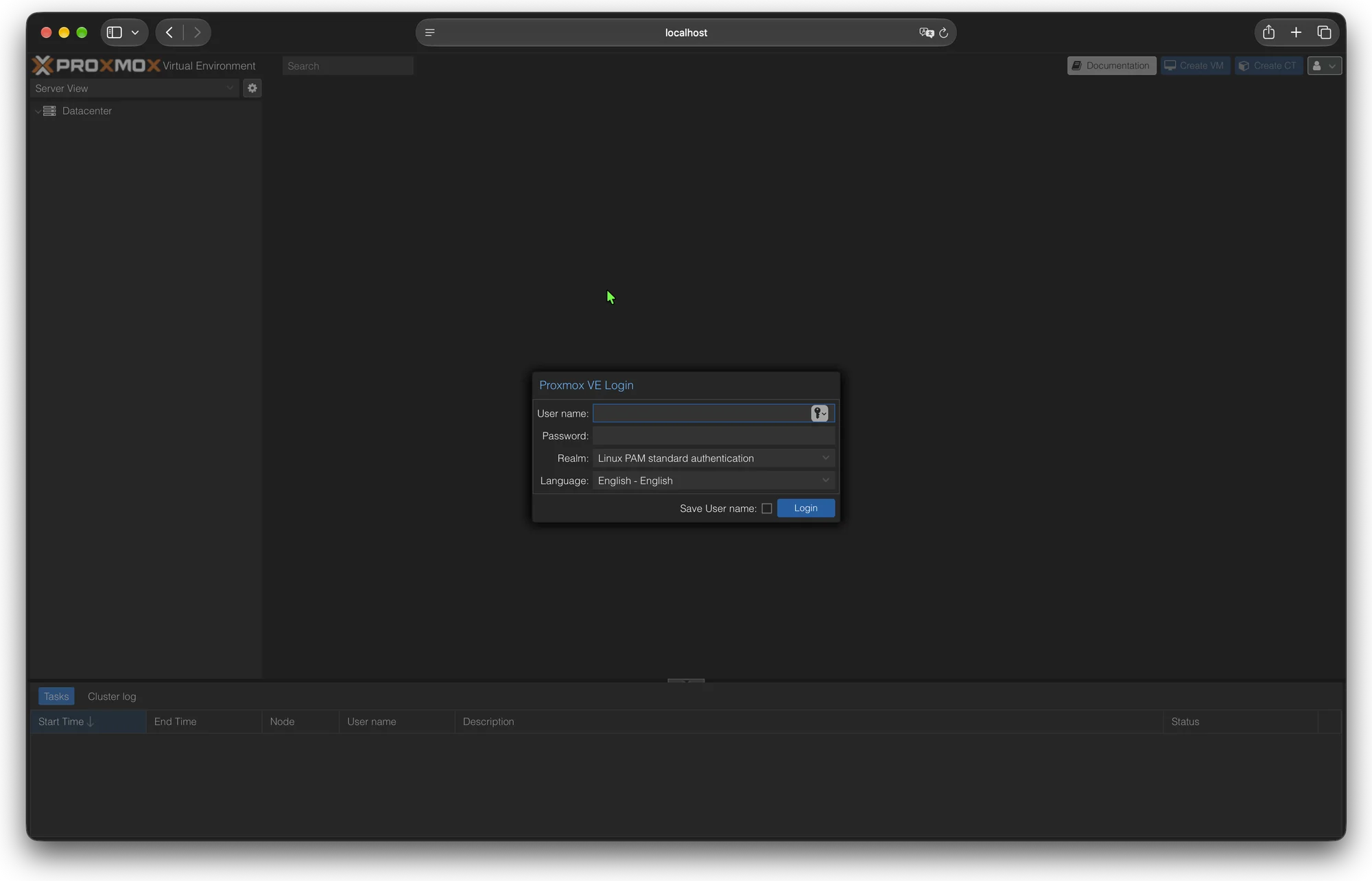
localhost.File transfer
The File Transfer view has two panes. Each pane can show This Mac or any saved server, selected from the menu at the top of the pane. That allows transfers from Mac to server, server to Mac and directly between two servers.
- Navigation with back, forward, up and home, or by typing a path.
- Columns for name, size, modification date and permissions.
- Copy and Move below each pane send the selection to the other side.
- The Transfers list shows running transfers with progress and speed, and finished ones until they are cleared.
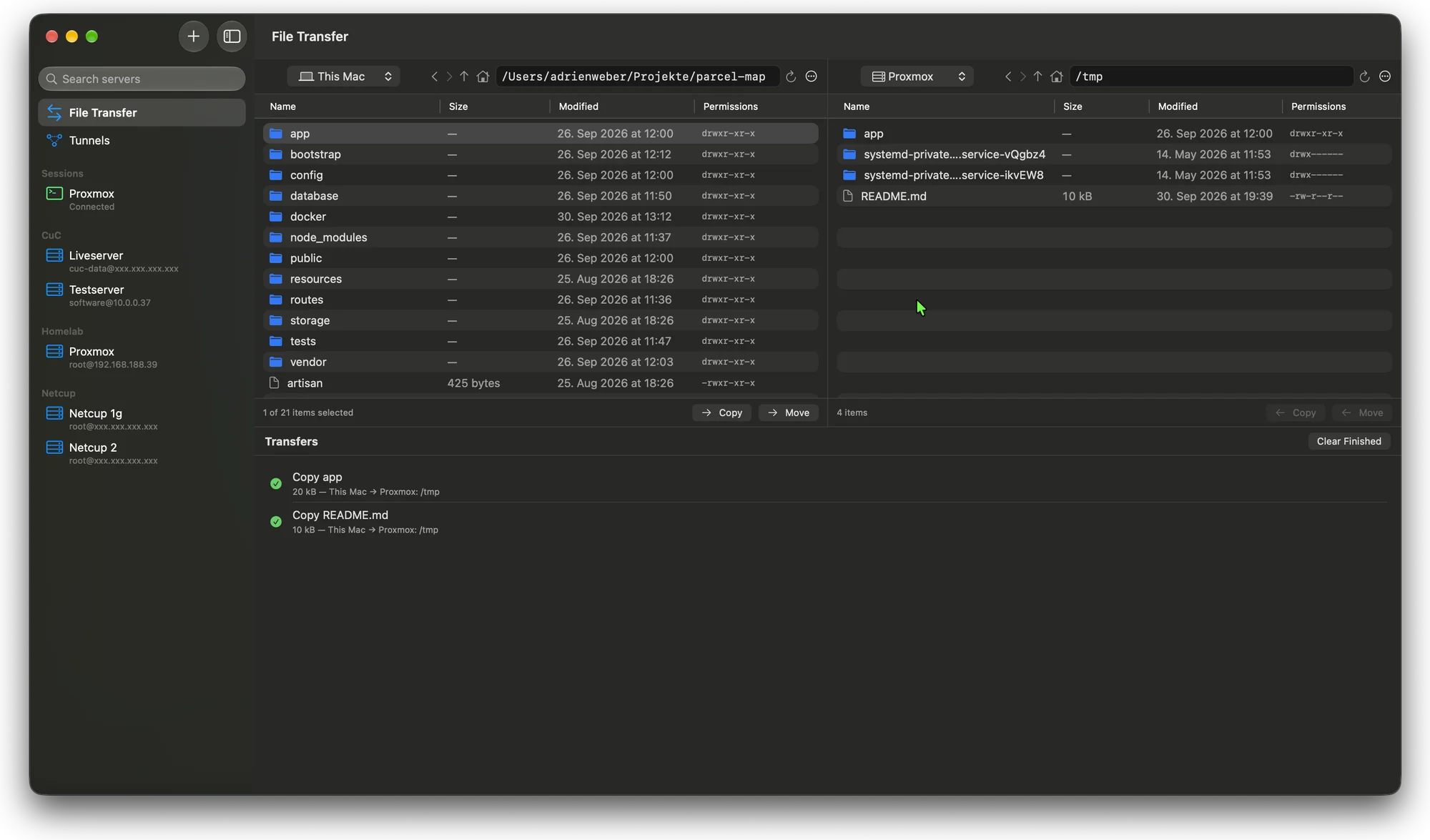
/tmp on the server.Technical notes
| Platform | macOS, native app |
|---|---|
| Language / UI | Swift, SwiftUI |
| SSH | System OpenSSH (ssh) for sessions, tunnels and transfers |
| Secrets | Passwords stored in the macOS Keychain |
| Services | None: no account, no subscription, no cloud sync |